
How to get the best broadband setup for gaming
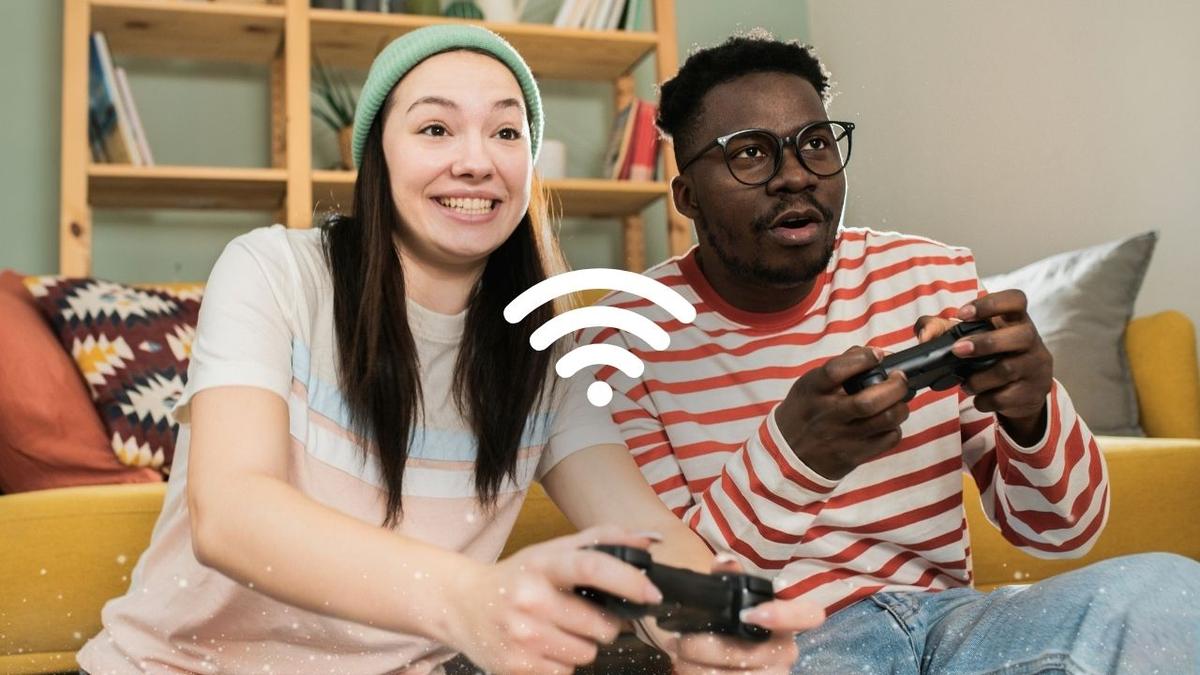
From where you put your Hub to how you connect your console or PC, here’s a few simple tweaks can help you get a smoother, more reliable connection when you’re gaming
By Virgin Media Edit
- Published
- 23 September 2026
Whether you’re dropping into a battle royale, racing to the finish line or trying to land that all-important headshot, your broadband setup can make more of a difference than you might think.
From the strength of your WiFi signal to things like ping, latency and packet loss, there loads of different factors that can affect how your game feels, and getting your setup right can help you enjoy a more reliable connection, with fewer interruptions for those intense gaming moment where every millisecond matters.
Read on to find out more about how your WiFi impacts your gaming experience plus five simple things you can try to get your broadband working better for gaming.
Why is broadband important when you’re gaming?
When you’re playing online, your console or PC is constantly sending information back and forth to the game’s servers. Your broadband connection helps make sure everything gets where it needs to go, so your game can keep up with what you’re doing.
When your connection is working as it should, everything should feel smooth and responsive. But if something’s getting in the way, you might notice lag, freezing, stuttering or even getting kicked out of the game.

It’s not just about the broadband coming into your home, either. Where your Hub is, how your gaming device connects to it and what else is happening on your home network can all affect your connection.
So, getting your broadband setup right can help you spend less time waiting for your game to catch up and more time actually playing.
Connection issues to watch our for when you're gaming
Latency
Latency is the delay when data travels between your device and the game’s server. High latency can cause lag, which makes your game feel slow to respond.
Packet loss
Packet loss is when some data doesn’t reach its destination. It can cause freezing, lag, stuttering or characters jumping around the screen.
Packet bursts
Packet bursts happen when data arrives in sudden bursts rather than smoothly. This can cause sudden spikes of lag or freezing.
Game stuttering
Game stuttering is when your game briefly freezes, skips or becomes choppy. It can be caused by connection issues or your gaming device struggling to keep up with the game.
How to improve your broadband for gaming
1. Plug your console or PC into your Hub
If your gaming setup is close to your Hub, try using an Ethernet cable instead of WiFi. While WiFi is fine for most everyday tasks, using a wired connection instead provides even more reliability as it isn’t affected by walls or other things that can get in the way of your WiFi signal.
2. Don’t hide your Hub away
Your Hub needs a bit of breathing room. Keeping it in a cupboard or tucked behind the TV can get in the way of your WiFi signal, especially if your gaming console or device is far away in another room.
Try to keep it out in the open, raised if possible, and away from large objects and other electronics that might block the signal from reaching your device.
3. See what else is using your broadband
Thankfully, your home WiFi is designed to handle lots of connected devices and everyday activities at the same time. But, in some situations, an unusually high demand for data can put extra pressure on a network. This is known as network congestion.
It’s worth seeing what else is going on around the home to make sure it’s not putting extra strain on your connection when you’re gaming. Things like large downloads and uploads, 4K streaming, and other people gaming online all use up bandwidth.
If convenient, it’s worth scheduling large downloads or software updates overnight or at times you’re not online to help free up bandwidth when you’re gaming.
4. Give your Hub a restart
If you find your broadband is unusually sluggish, the first port of call should be to power cycle your Virgin Media Hub – in other words, the classic “turn it off and on again” method.
It might seem simplistic, but power cycling your Hub (especially if it hasn’t been done in some time) can help to clear the Hub’s memory and CPU of older and no longer needed data and processing.
Simply follow the steps below to give your Hub a spring clean:
On the back of your Hub, turn the A/C power switch into the off position (with the “O” pressed in).
Leave it off for about 10 seconds.
Turn the Hub back on by turning the A/C power switch into the on position (with the “I” pressed in).
The Hub can take five to 10 minutes to reboot. You’ll know the connection is back up and running when there is a steady white light on the front of the Hub. The white light is at the front for a Hub3 and a Hub5. For the Hub4 this will be the light ring around the Hub.
5. Use a WiFi booster if you need it
If your gaming setup is upstairs, in a back bedroom or simply a long way from your Hub, your WiFi signal might not be as strong when you get there.
Virgin Media WiFi Pods are designed to help extend your WiFi coverage around your home, so you can get a stronger connection in those harder-to-reach spots. They work with your Hub to spread your WiFi further, helping reduce those frustrating areas where your connection can struggle.
They’re particularly useful if you like gaming somewhere that’s a fair distance from your Hub, or you have a larger or multi-storey home where WiFi needs to travel further.
Want to find out more? Learn more about our WiFi Pods with WiFi Max.
Need an extra signal boost?
If you've worked through the steps above and you're still experiencing buffering, frozen video calls or other connectivity issues, it may be worth checking whether you're getting the WiFi coverage you need throughout your home.
With our WiFi Guarantee with WiFi Max, you’ll enjoy download speeds of at least 30Mbps in every room or get £100 bill credit on your next bill. This goes hand in hand with our self-optimising Intelligent WiFi technology that’s loaded onto our Hubs 3, 4, 5 and 5x and adapts to what’s happening in your home to give you the most reliable WiFi, all the time.
Our WiFi Guarantee comes at no extra cost with our Gigabit Broadband packages. If you're on an eligible M50 to M500 Fibre Broadband package, you can add WiFi Max for £8 a month, with your first WiFi Pod included if you need one.
Not with us yet?
Level up your broadband with out best broadband deals for gaming. Just click the button below and pop in your postcode to see what you can get for your home.
More unmissable gaming highlights



Eligible Virgin Fibre areas only. WiFi Guarantee available with M50 broadband or faster. £8p/m extra or included with Gig1 or Volt. At least 30Mbps download speeds in every room or £100 one-off credit. Up to 3 WiFi Pods if needed. Exclusions & legal stuff apply.
WiFi Guarantee with WiFi Max: Available to Virgin Media residential broadband customers on M50 broadband or faster. Excludes Essential broadband customers. Existing Intelligent WiFi Plus customers will be individually informed when they are moved to WiFi Max. £8 a month add-on or at no extra cost for Ultimate Oomph, Gig1 and Volt customers. WiFi Max is only available to order once your Virgin Media broadband service has been activated. If you don’t get download speeds of at least 30Mbps in every room, if needed we’ll provide up to 3 WiFi Pods. If that still doesn’t do the trick we’ll give you a one-off credit of £100 off your next bill. Guarantee and eligibility for pods does not cover broadband faults or network outages. Pods subject to stock availability, require self-installation via QuickStart and can be delivered via Click & Collect or optional home delivery (£5 delivery charge may apply). Pod type provided may differ from image shown. Improved WiFi performance compared to use without pods. Home environment, device limitations, number of users and time of day may affect WiFi performance. User speed varies and depends on Pod/Hub location, as well as broadband package choice. Equipment remains property of Virgin Media. Exclusions and further terms apply.
